

Blog  /  Frogtummy™ Inbox + Signups

Frogtummy™ Inbox + Signups

Frequently asked questions and training.

By Frogtummy  |  Posted August 25, 2026


In this working group, we covered the following:

  • Creating a Frogtummy account
  • Staff dashboard for lunch payments
  • SMS opt-in
  • Contact preferences
  • Scheduling messages on future dates
  • Templates
  • Two-way communication with parents
  • Message receiving issues
  • Parent-Teacher Conference signups
  • Other signups
01

Create a Frogtummy account

Parents

Direct families to log in at the top of your website or the Frogtummy App. They must create an account using their custodial Aspire email address so they can be connected to their students. 

Staff

Staff should login with their email from Aspire in order to pay for school lunch and manage attendance.

If a staff member is also a parent, have them match their custodial and staff email addresses in Aspire for so they can access both the staff and parent modules.

Frogtummy Portal How-to
02

Import staff from your SIS

Frogtummy can automatically import your SIS school staff into our platform. 

When imported, staff become contacts in Frogtummy and their roles appear in the SIS School Staff Import tab. Map each role to a contact type so you can easily send messages by type, such as Administration, Faculty, Custodial, Coaches, etc. 

Inbox Contacts FAQ
03

SMS Opt-in

When parents create a Frogtummy account, they have the option to check the box to opt in to messaging.

They can also text START to the school's phone number. Find your phone number listed on the SMS tab.

Communication Preferences

In the portal, account members can adjust their communication preferences. They can subscribe to certain modules, opt out of all communication except emergencies, choose to receive only emails and not texts, etc.

*Please note: If a person texts STOP to your school number, they will not receive ANY communication via text until they text START again.

SMS FAQ
04

Troubleshoot messages that are not received

  1.  Verify their communication subscriptions by clicking the Subscriptions button on their contact record.
  2. Check Recent Message Sends in the parent contact log to view the delivery status of the message.
  3. Ask the parent to mark the school's email address as a safe sender.
  4. If not resolved with the the above steps or message status shows "bounced", email support@frogtummy.com.
Delivery Status Definitions
05

Schedule message delivery + use templates
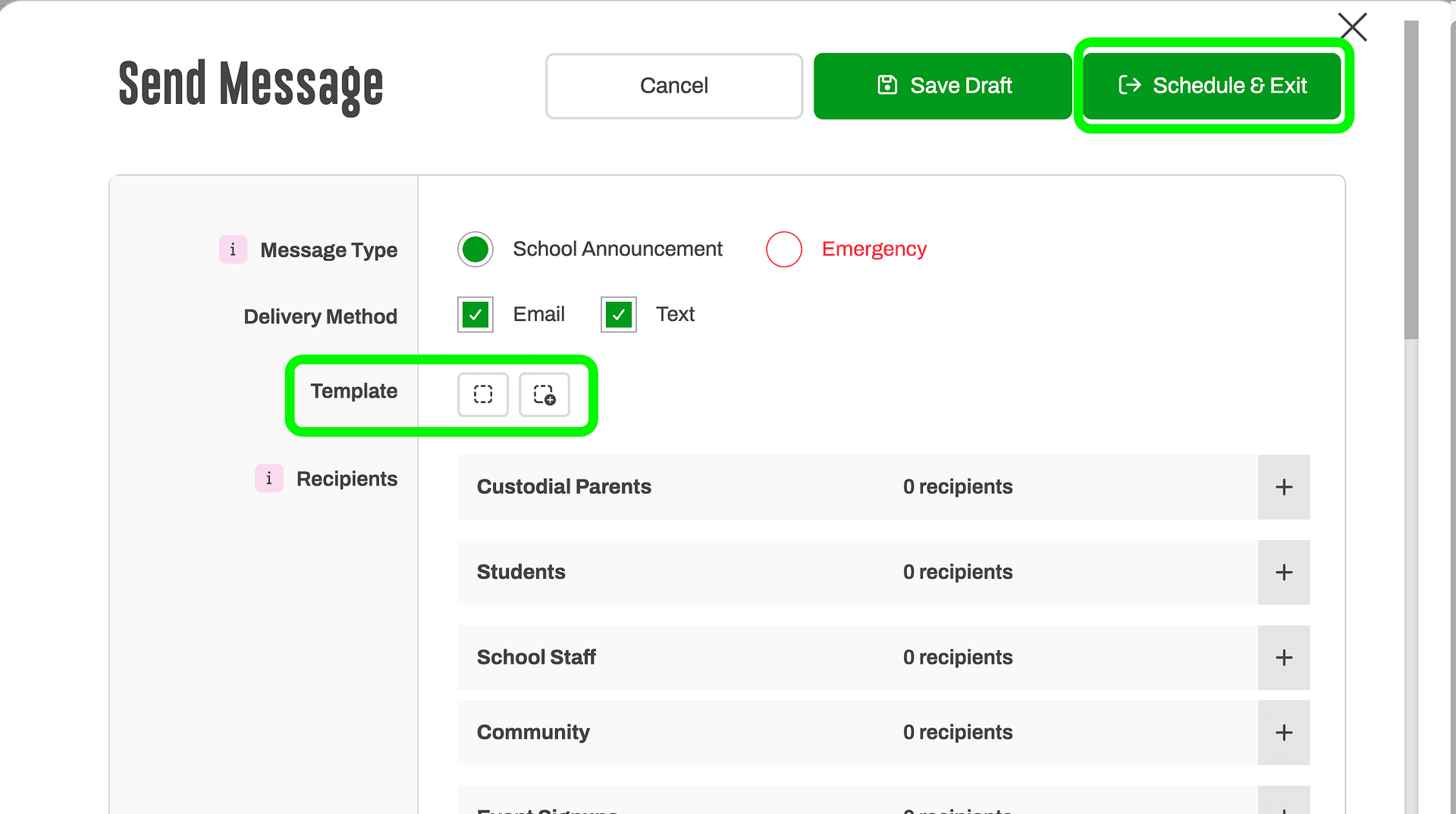
Schedule message delivery

Schedule messages for future delivery when needed using the calendar after you click the Schedule + Exit button.

Use templates

Create reusable email and SMS templates for frequently sent messages using the Template buttons.

06

Manage events using Signups

  • Create a signup for the event and add the appropriate staff/teacher options.
  • Allow families to select available times.
  • Use the search functionality on the Upcoming Appointments tab to easily locate information about attendees.

Watch Recording

46:27 length