


01 - Prepare to Take Payments
Before initiating any payments in myPayment, it’s important to complete a few key setup steps to ensure accuracy and accounting compliance:
- Verify Fee Setup: Confirm that all fees are properly configured with the correct accounting codes. (Need a refresher? Watch our previous session on fee setup.)
- Set Up Tills: This ensures that all in-person payments are tracked correctly and tied to your staff and location.
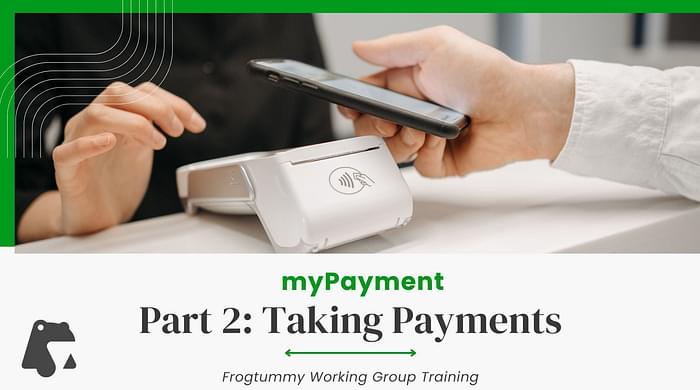
- Connect Tap-to-Pay Devices: If your school is using contactless payment terminals, ensure they are connected to your WIFI and tested in advance. If tap-to-pay devices are not yet in place, no problem—schools can still accept payments via other methods such as manual card entry, ACH, cash, or check.

02 - Payment Options Available
MyPayment offers a flexible point-of-sale experience that supports multiple payment methods:
- Debit & Credit Cards (via Bluetooth tap-to-pay device or manual entry)
- ACH / Bank Transfer
- Cash
- Check
Each of these payment types is automatically tracked, allowing your school to view detailed transaction reports by payment method.

03 - Anonymous v Assigned Payments
Anonymous Payments
(not tied to an account)
For purchases that are not student-specific, like concessions, ticket sales, or general merchandise, you can enter the appropriate shop directly through In-Person Ordering without proxying.
In these cases, the customer name and email fields are optional. Some schools choose to leave them blank, while others label them (e.g., using “Concessions” or “Fall Carnival”) to track event-based sales more easily.
A receipt can be printed for these sales; however, they will not show in the parent portal as they are not tied to a specific parent.
Assigned Payments
(tied to an account)
When a payment is tied to a student’s account—such as lunch funds, student fees, or individual school store purchases—staff will need to proxy in as the parent to ensure the transaction is properly recorded. To do this:
-
Go to the In-Person Ordering tab.
-
Select your primary shop.
-
Use the proxy feature to log in as the desired parent.
Once proxied, staff can complete a unified transaction covering fees, lunches, and store items in one seamless checkout.

04 - Purchase Visibility & Transparency
One of the many benefits of using myPayment is the transparency it offers to both families and staff:
- Parents can view their full purchase history through their dashboard for all purchases they made while logged in to the parent portal.
- School personnel can access detailed transaction histories and reports within the system.
This visibility strengthens trust, simplifies reconciliation, and keeps both ends of the transaction informed.
Watch Recording
29:10 length